Your Freebox is connected, the light is flashing, and you would like to change the name of your Wi-Fi network or check which devices are connected. All these operations go through a single entry point: the Freebox OS interface, accessible from a simple browser. However, you need to know how to connect to it, secure it, and respond when access is no longer working.
Lost password or access blocked after update: how to unlock Freebox OS
Most guides explain how to connect for the first time. Few detail what happens when the administrator password has been forgotten, or when a firmware update changes the behavior of local authentication.
During the very first connection, Freebox OS asks you to create an administrator password. This password is not the one for your Free subscriber area: it is a code specific to your box, stored locally. If you lose it, you cannot retrieve it from an email or your online account.
The recovery procedure requires a physical validation directly on the Freebox. Specifically, you initiate the password reset from the page mafreebox.freebox.fr, then you must press a button or confirm a message on the box’s touchscreen (depending on the model). If the Freebox is located in a locked technical room or at a former roommate’s place, this step becomes a real obstacle.
After certain updates, some subscribers report that the login page is unresponsive or loops on the identification screen. In this case, restarting the Freebox (unplugging, waiting about ten seconds, plugging back in) usually restores access. If the problem persists, clearing the browser cache or trying another browser can help isolate a cookie conflict.
If you want to delve deeper into each step of connection and troubleshooting, a complete guide for mafreebox freebox details the procedures model by model.
Local connection to Freebox OS: what to type and why
You may have read that you need to enter an IP address like 192.168.1.1. This is the case for many competing boxes, but Free has simplified things. The address to remember is mafreebox.freebox.fr, plain and simple.
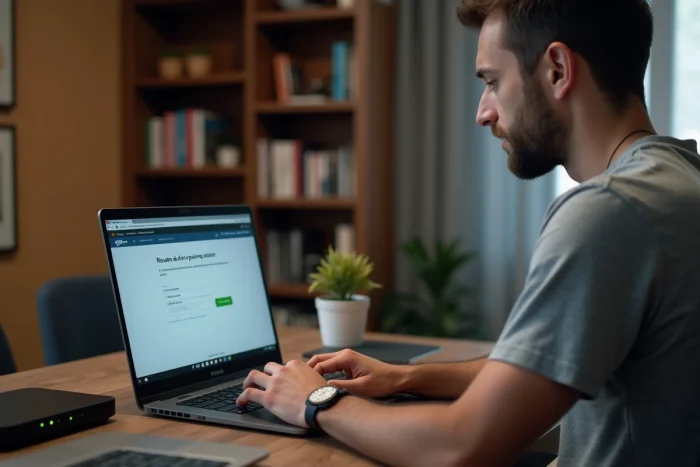
This address works from any device connected to your Freebox network, whether via Wi-Fi or Ethernet. Type it into the address bar of your browser (not in the search bar), and the Freebox OS login page will appear.
Why this address and not an IP?
The address mafreebox.freebox.fr is a local domain name resolved directly by the Freebox. You do not need to memorize a series of numbers, and the address remains the same regardless of your Freebox model (Revolution, Pop, Delta, Ultra).
Once on the page, enter your administrator password. The dashboard opens and displays the connection status, network traffic, and the list of connected devices.
Remote access to the Freebox: activation and limits
You are at the office or on the go and want to check if your Freebox hard drive contains a specific file? Remote access exists, but it is not enabled by default.
To activate it, go to Freebox OS, then to the access management settings. Enable the remote access option. The system will then provide you with a specific address (different from mafreebox.freebox.fr) that you can use from any internet connection.
- Remote access must be manually activated from the local network of the Freebox, which prevents activation by a third party.
- The administrator password also protects remote access: choose a strong one, with at least twelve characters combining letters, numbers, and symbols.
- From a smartphone, the Freebox Connect (box management) and Freebox Files (storage) apps offer more convenient access than a mobile browser.
Remote access exposes your configuration interface to the internet. If you do not use it regularly, it is better to disable it after use to reduce the attack surface.
Useful Freebox OS functions from day one
The dashboard provides access to many settings, but three of them deserve your attention right from the start.
Rename and secure the Wi-Fi network
By default, the name of the Wi-Fi network (SSID) contains the model of your box. Replacing it with a custom name prevents your equipment from being identified by neighbors. Take this opportunity to check that the encryption protocol is set to WPA2 or WPA3, depending on what your model offers.
Control connected devices
The “Network Devices” section lists each device with its name, IP address, and MAC address. You can immediately spot an unknown device. Blocking a suspicious device takes two clicks from this page.
Configure static routes
Since the 4.10.1 update available on Freebox Revolution, Pop, Delta, and Ultra, static route management is integrated into Freebox OS. This long-requested feature allows advanced users to direct traffic from certain devices to a secondary router or a hardware VPN, without tinkering with command line.
The majority of subscribers will not need this option on a daily basis. It remains valuable for those managing a segmented home network or hosting a local server.
The Freebox OS interface covers many other settings (parental control, port forwarding, internal storage management), but first familiarizing yourself with Wi-Fi, the list of devices, and the security of the administrator password lays a solid foundation. The rest can be discovered as needed, without urgency.